As long as you work alone, like fine-line tattoo studio Studio Pixel in Belgium, everything is yours: the calendar, the clients and the till. As soon as a second artist joins, or a guest artist works with you for a few weeks, new questions come up. Who gets which share? Who sees which clients? And how do you settle up at the end of the month without arguments? This guide lays it out.
Employee, freelancer or chair rental?
Most studios use one of three models:
- Employee. The artist is on the payroll and gets a salary. The studio receives all payments.
- Freelancer (self-employed) on a percentage. The artist works self-employed and gets an agreed share of what they bring in. The rest is for the studio. At the end of the period you settle up, often with an invoice from the artist to the studio.
- Chair rental. The artist rents a spot for a fixed amount and otherwise works entirely for their own account.
Put these agreements on paper
- The studio share: which percentage of the service goes to the studio? The rest is for the artist. You can agree on one percentage per artist, and make an exception per session, for example for a guest spot.
- Products and supplies belong to the studio: the studio buys the aftercare products, ink, needles and disposables, and product sales go entirely to the studio. That makes it clear the studio share is about the service only.
- Clients and data: are the clients the studio's or the artist's, and who may see which data? Keep privacy rules (GDPR) in mind too, especially for the health questions on your consent form.
- Settling up: agree on how often you settle, for example monthly. At the end of the month the artist then sends the studio an invoice for their share, based on the figures you can both see.
Your team in StudioTrackr
In StudioTrackr you invite your artists by email. They then work in the same studio, with their own login and their own colour in the calendar. Want them to see their bookings on their phone? Put their sessions in Google Calendar: every artist gets a calendar of their own.
- 1Open Settings → Employees and tap Add employee.
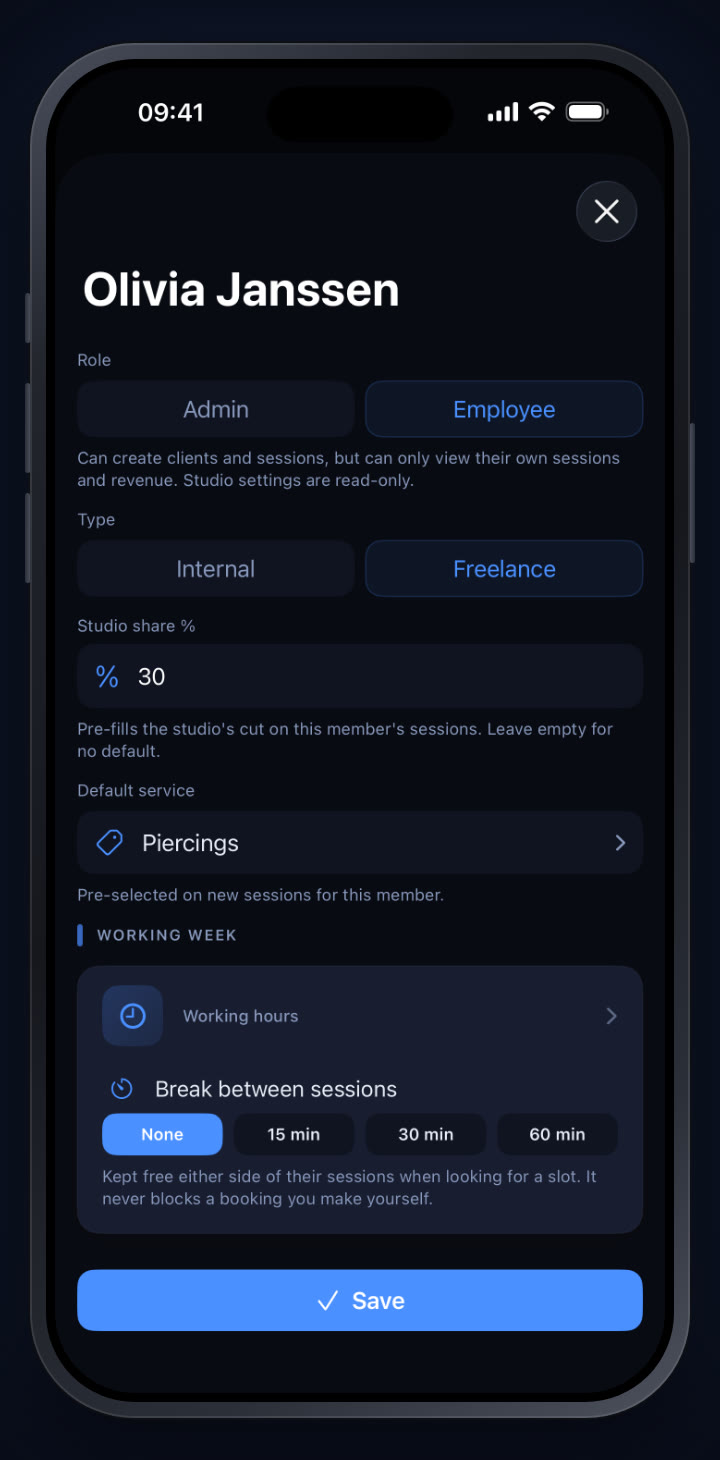
- 2Pick the role: an admin sees and manages the whole studio, an employee only sees their own sessions and revenue.
- 3Pick the type: internal or freelance, so you can see at a glance who is who.
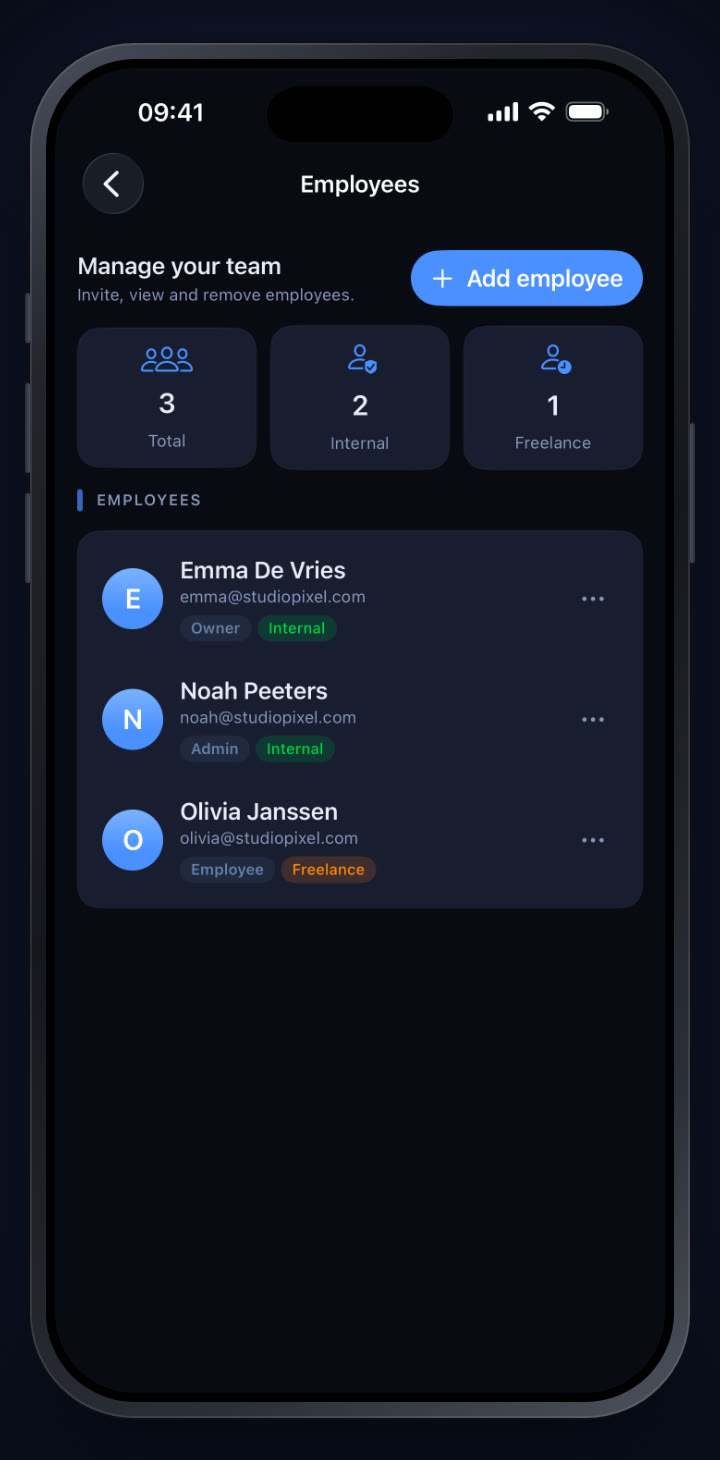
- 4Set the studio share. This percentage is filled in automatically on every new session of that artist. You can still change it per session, for example for a guest spot with different terms.
- 5Pick a default service so it is selected in advance.
- 6Working week and break between sessions are set here too. The slot finder takes them into account.
Settling up without the maths
Because the studio share is on every session, StudioTrackr calculates the split for you. In Sessions, filter on an artist and a period, and you immediately see what is for the artist and what is for the studio.
- 1Open Sessions and tap the filter icon.
- 2Pick the period, the status Completed and the artist under Employee.
- 3Read the split: the green box is what the artist earned, the other box is for the studio. Products sold always count fully for the studio.
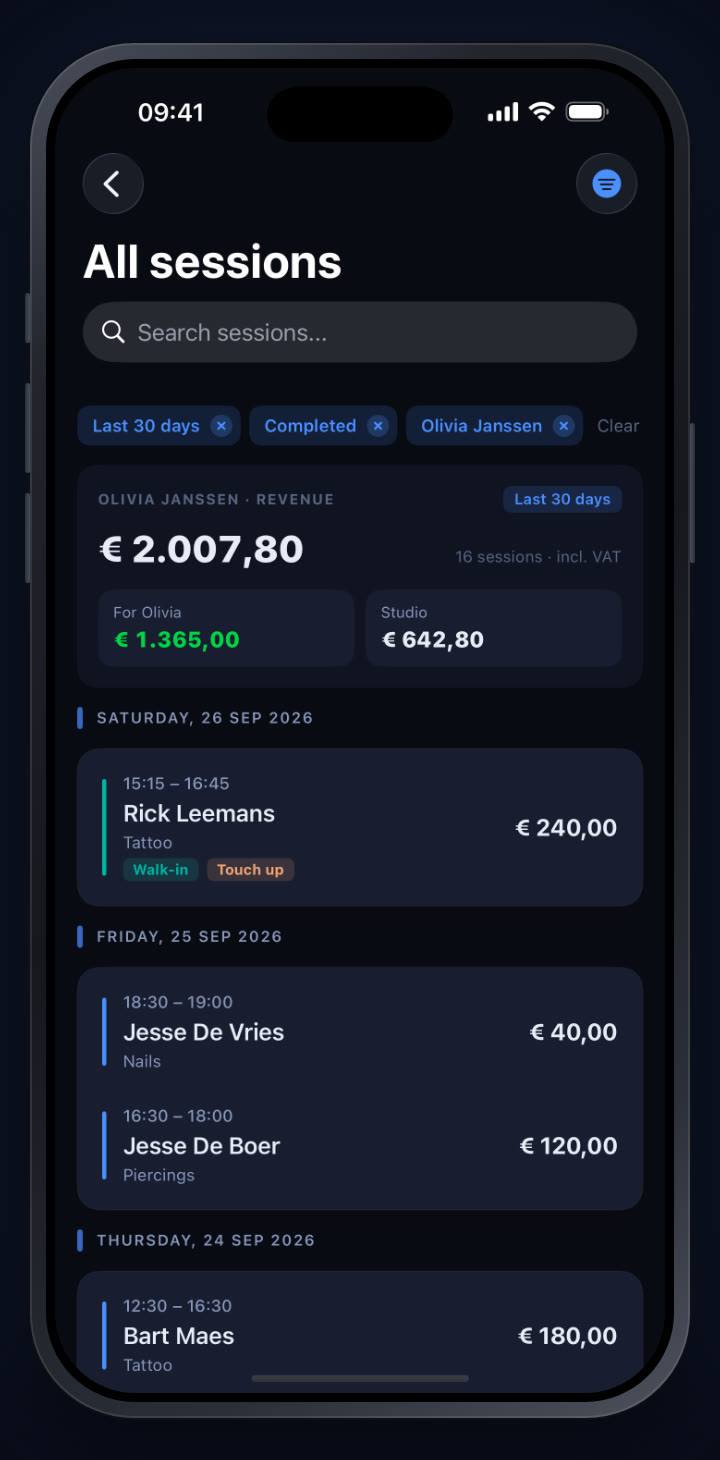
An artist with the employee role only sees their own sessions in the app, and so only their own split. Those are exactly the figures a freelancer needs to invoice the studio.
The overview as an owner
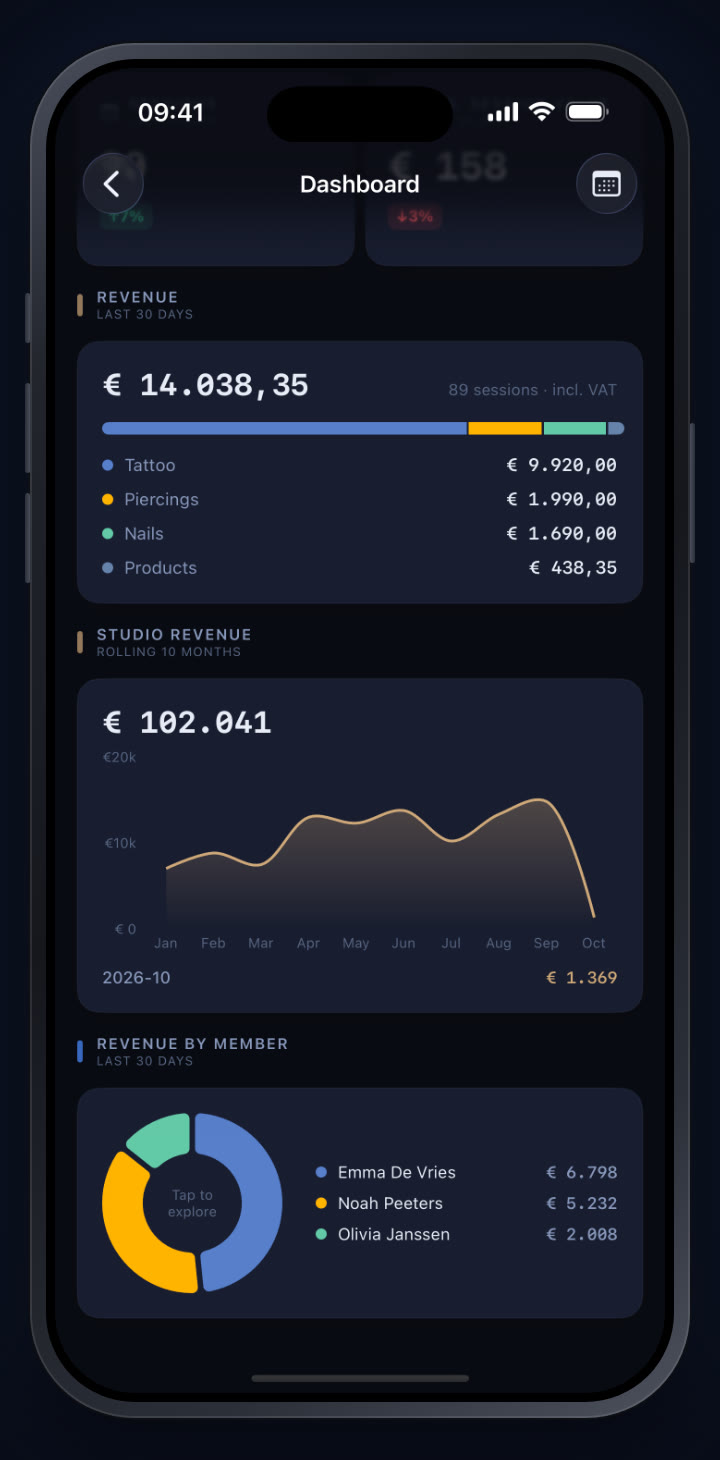
- 1Open the Dashboard. As an owner or admin you see the figures for the whole studio.
- 2Revenue by member shows who brought in how much over the last 30 days. Tap the chart to explore.
- 3The daily receipts book can be exported for the whole studio, and every artist can export their own receipts. Read more in our guide to the daily receipts book.
In short
- Pick a way of working together that fits, and get advice on it.
- Agree on the studio share, products and supplies, client data and how often you settle up.
- Set the studio share per artist, and every session adds up by itself.
- Settle up from the figures per artist and per period, not from memory.
Try it yourself in StudioTrackr
Available for iPhone, iPad and Mac. Monthly plans start with a 7-day free trial.