Rather watch than read? It all takes 66 seconds.
You plan in StudioTrackr, but all day long you look at the calendar on your phone. With the Google Calendar connection you don't have to choose: every artist gets their own calendar with their sessions and time off, and it stays up to date by itself. Add it once, and you no longer need to open the app to see when the next client is due.
How it works
- One direction: from StudioTrackr to Google. The calendar is read-only for the artist. Planning, moving and cancelling happen in the app, and within seconds the change is in Google too.
- What goes in: the artist's planned and completed sessions, their time off and the days the studio is closed. A cancelled or deleted session disappears from the calendar.
- How far: from the last two weeks up to a year ahead. Older sessions are not copied over.
- Where the calendars live: in the studio's Google account. Each artist gets one named after the studio and the artist, like "Studio Pixel - Noah". As the owner you see them all there; an artist sees theirs once you share it with their Google address.
- Prices and payments never go to Google: an event shows the client, the time, the service and, if you allow it, the notes.
OwnerConnecting Google
You connect once, for the whole studio. Use the studio's Google account for it, not your personal one: that is where the calendars of all your artists will live.
- 1Open Settings. On the home screen, tap your name at the bottom.
- 2Choose Google Calendar under your studio's settings.
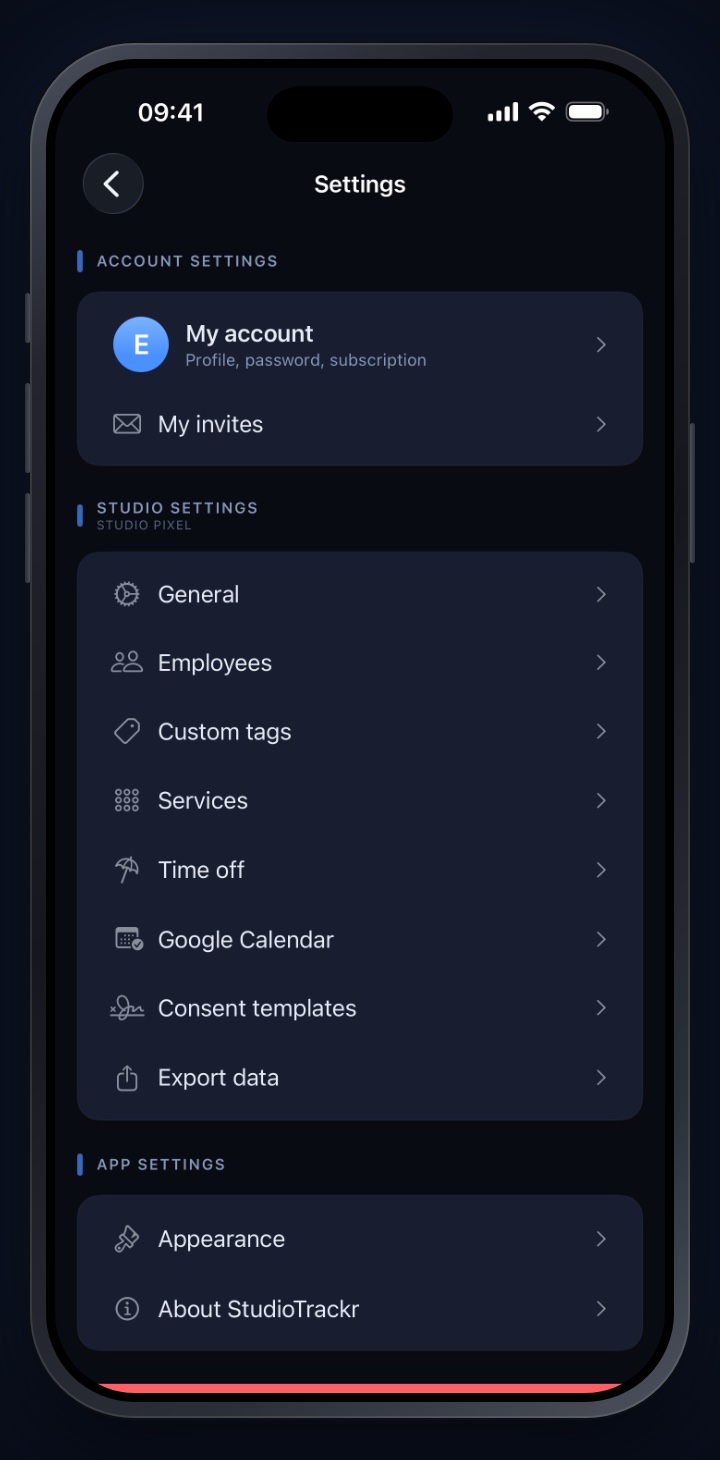
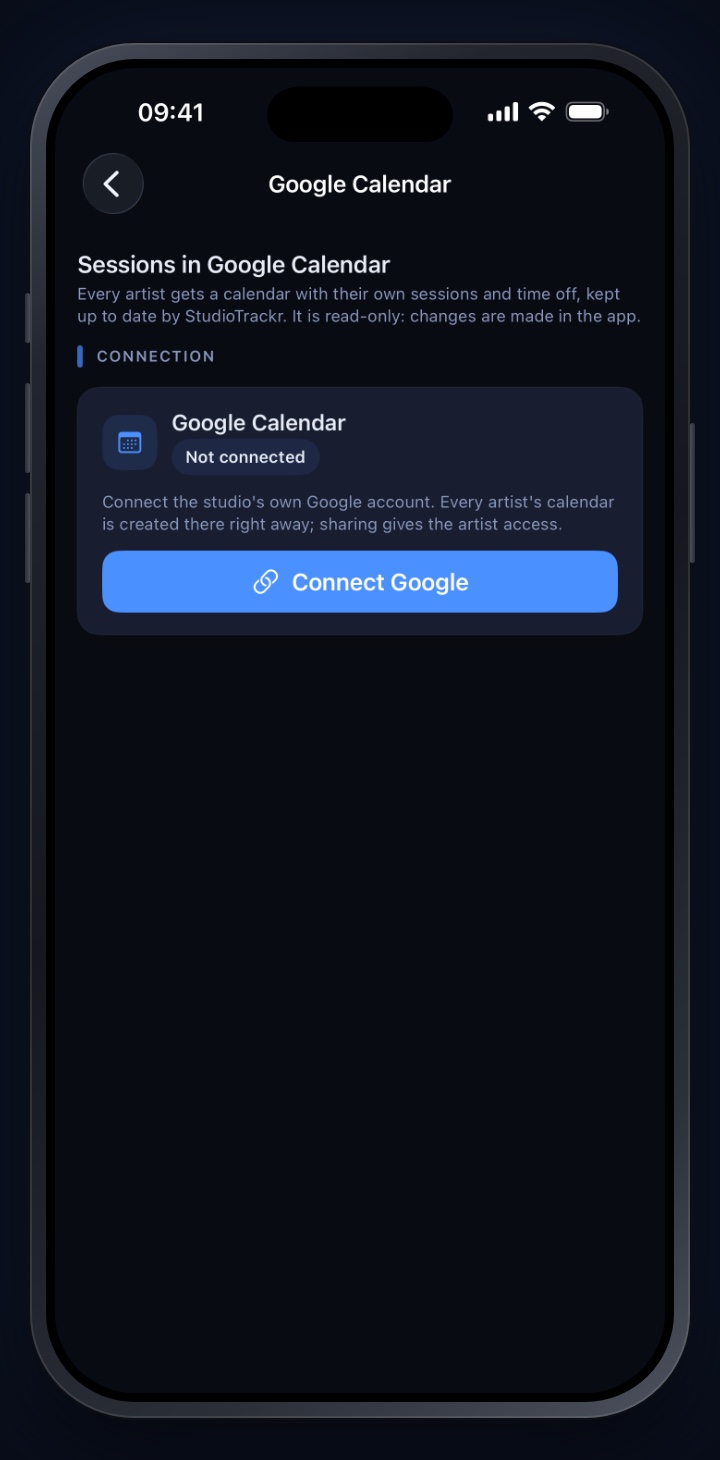
- 3Tap Connect Google. iOS asks whether StudioTrackr may use google.com to sign in. Tap Continue.
- 4Sign in to Google with the studio's account. You only give your password to Google, StudioTrackr never sees it.
- 5Allow both calendar permissions. Google asks for permission to create calendars and to share them. If you untick one, StudioTrackr refuses the connection and the app asks you to allow both.
- 6Back in the app the connection reads Connected, with the address of the Google account.
OwnerSharing a calendar per artist
Once connected, two new blocks appear on the same screen. Is your team not in the app yet? Read our guide to running a tattoo studio with multiple artists first.
- What artists see. Calendars show up on lock screens, so you choose what can be read there: the client's full name, only the first name (the default), or nothing personal, without a name and without notes. If your notes hold health details, pick that last one.
- Artists. One row per artist with the address it is shared with and its status. Tap ··· and choose Share calendar. The calendar is already there; sharing lets the artist view it. Google emails the artist a link for that.
Does an artist use a different address for Google than for StudioTrackr? Choose Change calendar email in the same menu. Artists can also set this themselves for their own row. No email arrived? Choose Send the invitation again.
You are on the list too. If your calendar email is the studio's account, your row reads In Google Calendar: your calendar is already there, there is nothing to share and Google sends no email. If you use another address, you share your own calendar just like an artist's.
ArtistThe calendar on your phone
As soon as your calendar is shared, StudioTrackr shows you the steps under Add it to your phone on the same screen:
- Open the link Google emailed you, once. The calendar is then added to your Google account.
- In the Google Calendar app it appears by itself.
- In Apple's Calendar app not right away: open calendar.google.com/syncselect on your iPhone, tick the calendar and save. The app has a button for it.
- On Android, switch the calendar on in the Google Calendar settings if it doesn't show.
Is your calendar in the studio's Google account, and do you use that account yourself? Then no email comes and you skip the link.
Alerts are yours to set in your calendar app. StudioTrackr doesn't add any.
Stopping or disconnecting
- Stopping for one artist: choose Stop sharing in their row. The artist loses access. The calendar stays in the studio's account and keeps being updated, so if you share again later it is fully up to date right away.
- Disconnecting everything: tap Disconnect and confirm. All artists lose access, nothing is updated anymore and StudioTrackr no longer has access to the Google account. The calendars themselves stay in the studio's account. Connect the same account again later and those calendars carry on; another account gets new ones.
- Someone leaves the studio? Whoever is removed from the team also loses access to their calendar, and it is no longer updated.
- Calendar deleted in Google? It doesn't come back by itself. Share it again and StudioTrackr makes a new one.
No sessions to show yet? Read how to plan a session in the calendar first. You'll find more in our other how-tos. Got a question? Let us know.
Try it yourself in StudioTrackr
Available for iPhone, iPad and Mac. Monthly plans start with a 7-day free trial.